Only the screen you target
Independent screens switch only under your pointer. Linked screens switch as a group; displays outside the group keep their work in place.
MULTI-MONITOR DESKTOP TOOL
Keep your reference material in view while switching tasks on another screen. Switch the workspace on the monitor under your pointer, or link selected screens to switch them together. Built for Windows 11. These Workspaces are separate from Windows virtual desktops and do not replace Win+Tab.
For Windows 11 (64-bit). Select Free trial on the Store page. See Microsoft Store for the purchase price and trial terms.
DISPLAY 01 WRK 1
DISPLAY 02 WRK 2
DISPLAY 03 WRK 1
WHY IT FEELS NATURAL
Independent screens switch only under your pointer. Linked screens switch as a group; displays outside the group keep their work in place.
Link two or more working screens into one group. Screens you leave out remain independent. One linked group is supported.
Use the pin in overview to keep File Explorer or notes visible across Workspaces on their monitor. Pinning does not force a window on top or duplicate it onto other monitors.
Drag a row to another Workspace without switching, or double-click to open its Workspace and bring the window forward. Configure active-window move shortcuts to move and follow it. Moving a pinned window unpins it.
LINKED SCREENS
With three screens, link two working displays and keep the remaining display independent for reference material. You can also link both screens in a two-monitor setup.
Enlarge the video for the details; turn your phone sideways for a wider view. Silent Japanese UI demo with English captions.
Two working screens switch together. Your reference stays visible.
Bring back editing and messages, then continue working.
An actual overview still introduces open, pin and move controls.
Apply saves settings without immediately switching Workspaces. Clear every selection and Apply to unlink. A single selected screen also works independently.
Positions are relative to the main display. This screen marks the screen under the pointer when settings were opened.
A window spanning displays follows its owning monitor for visibility. Windows are not split at screen boundaries.
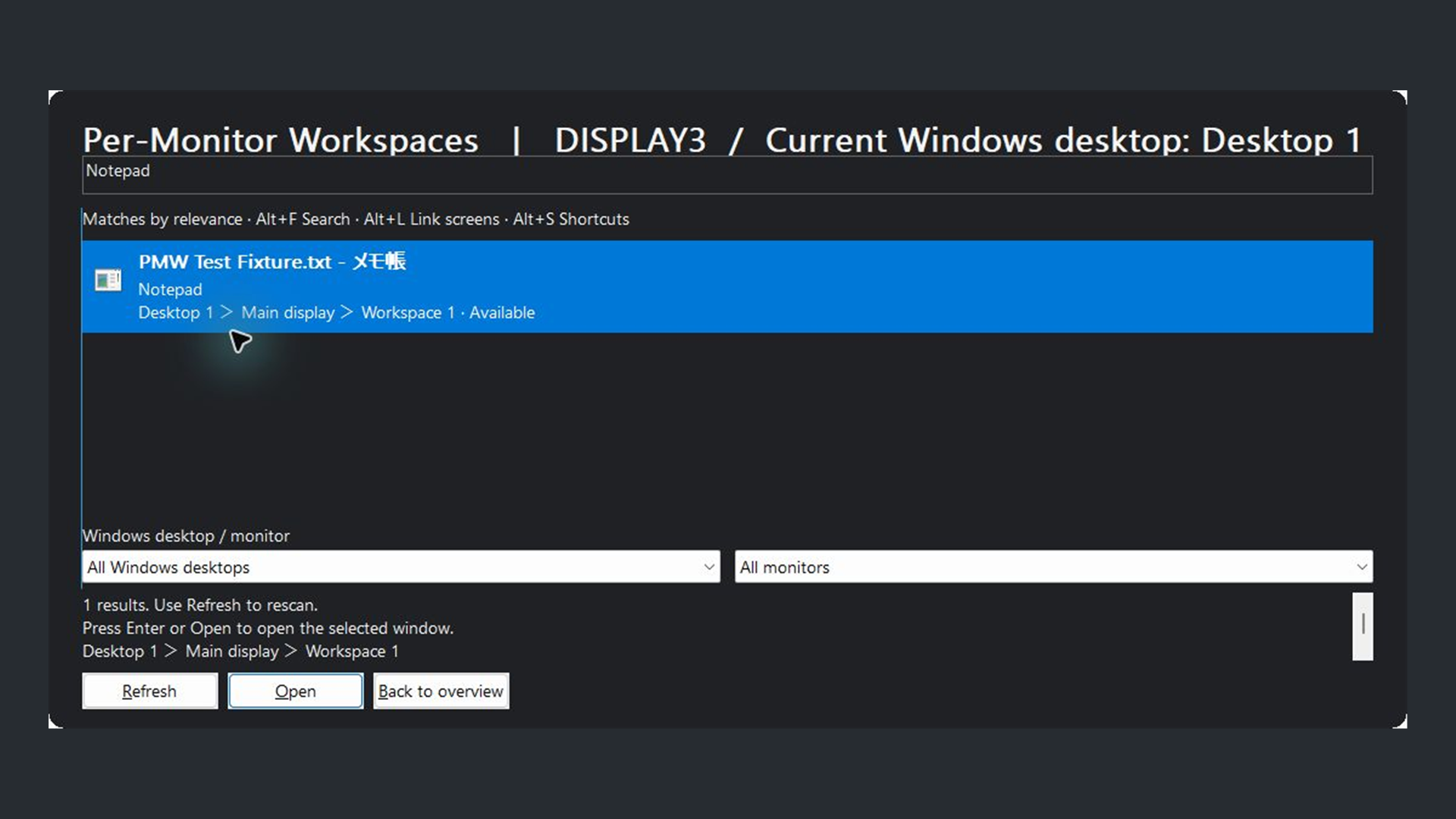
Search by window title or app name in the overview. Each result shows its Windows desktop, monitor and Workspace. Press Enter to open the selected result if it is available on your current Windows desktop. For results on another Windows desktop, switch to it with Ctrl+Win+Left/Right before opening the window.
In the overview, use Alt+F to focus search, Alt+L for linked screens and Alt+S for shortcut settings. During Japanese text conversion, the first Enter confirms the text.
THREE STEPS
Per-Monitor Workspaces runs in the system tray, the notification area at the bottom right of your screen. It does not open a regular main window. Choose two or three Workspaces from the tray menu. These Workspaces are separate from Windows virtual desktops and do not replace Win+Tab.
Quick-start guide (1.3.4, English PDF)
For Windows 11 (64-bit). Select Free trial on the Store page. See Microsoft Store for the purchase price and trial terms.
Workspace features run locally without a separate app account or cloud connection. Microsoft services are used for Store acquisition and licensing.
This site uses no analytics, advertising, or first-party cookies. The hosting provider may process basic connection information for security and delivery.
Microsoft's privacy terms apply when you use Microsoft Store and Windows services.
If product changes require an update to this policy, the last-updated date on this page will be revised.
SUPPORT / SELF CHECK
Open the hidden-icons area at the right of the taskbar and look for the app's notification-area icon.
Choose Shortcuts at the top right of overview, or open settings from the tray menu. Choose a combination that does not conflict with another app.
Open Windows Settings, then Apps and Startup, and turn automatic startup off at any time.
For troubleshooting, note your Windows 11 version, monitor count and arrangement, and the exact steps that reproduce the issue.
BEFORE YOU START
Ctrl+Win+Left/Right switches Windows virtual desktops. The app's default keys are Ctrl+Win+Up/Down for Workspaces; saved keys are preserved. The overview shows the current Windows desktop and target display. Window assignments and pins are tracked separately for each Windows desktop while the app runs.
The app runs in the system tray. Check the hidden-icons menu at the bottom right, then click the app icon to open the overview. Esc or closing overview does not exit the app. Use Exit in the tray menu.
The 1.3.4 defaults are Ctrl+Win+Up for previous Workspace, Ctrl+Win+Down for next, Ctrl+Shift+Space for overview, and Ctrl+Alt+P to pin the active window. Saved keys are preserved after updating; registration conflicts can also change active bindings. Check the overview footer and choose Shortcuts at the top right to change keys.
Check your external displays, their power and connections, and Extend these displays in Windows Settings. Reopen linked-screen settings. Linking needs at least two detected displays.
The app may be waiting for window-state recovery. Follow the displayed message and retry switching. If it persists, exit normally and record the message and reproduction steps.
Some windows, including apps running with different privileges such as administrator apps, may be outside the tool's control. During your trial, check switching, pinning and moving with the apps you use.
It helps make missing windows visible. It does not recreate the previous arrangement: it consolidates windows into Workspace 1 and clears pins. Save your work and review these effects before using it.
Updating the app does not reset the trial. Check Microsoft Store for pricing, trial terms and your license. No separate app account is required.